
Add a SharePoint folder to OneDrive
These steps use the modern SharePoint and OneDrive experience in a browser, then the OneDrive sync app on your computer. Menu labels can vary slightly by tenant and screen width. If you are on a managed PC, stay signed in with your work Microsoft 365 account.
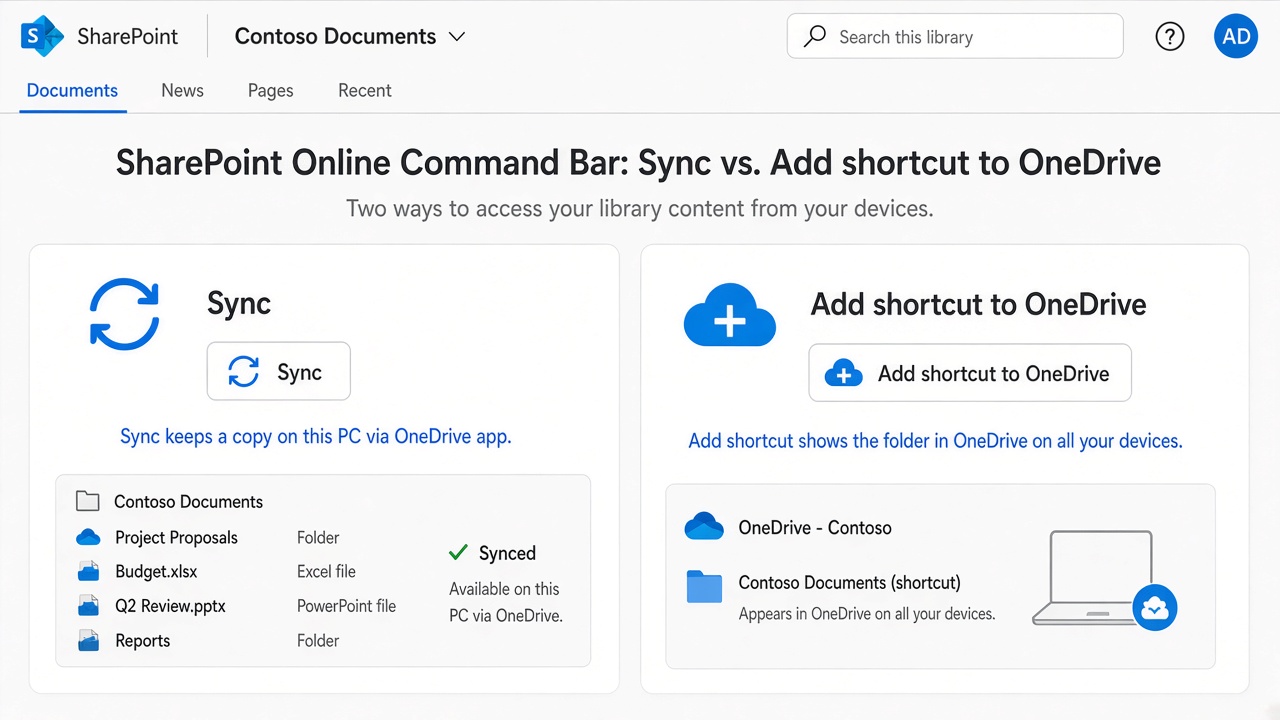
Sync vs Add shortcut to OneDrive
Both put SharePoint content where you can open it from File Explorer or Finder. Pick the one that matches how you work:
- Sync — keeps a live copy of that library or folder on this PC through the OneDrive app. Best when you need offline files on one machine.
- Add shortcut to OneDrive — places a shortcut inside your OneDrive so the folder shows up across your signed-in devices. Microsoft’s preferred option for most people when both appear.
1. Open the SharePoint library or folder
- Sign in to Microsoft 365 in Edge or Chrome with your work account, then open the SharePoint site that holds the files.
- In the left nav, open Documents (or the library you were given). Drill into a subfolder if you only need that folder.
- Stay on the library view — you should see the command bar with New, Upload, and related actions above the file list.
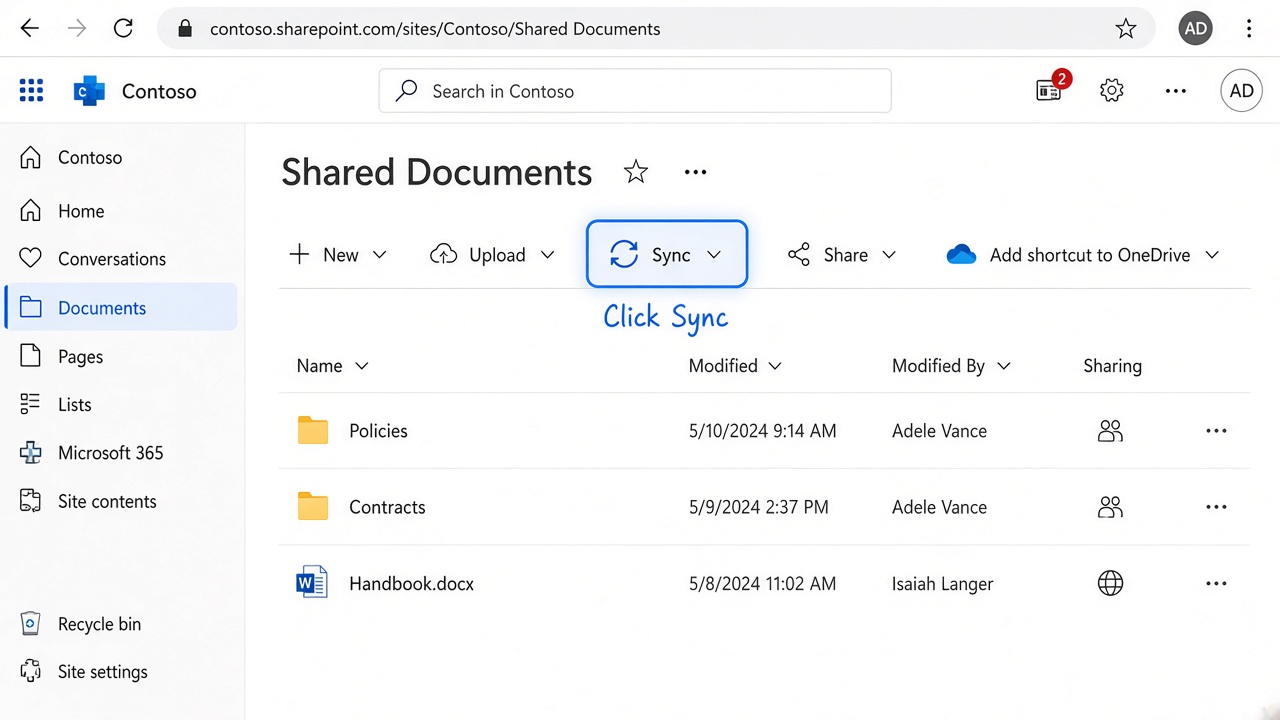
2. Choose Sync or Add shortcut to OneDrive
- Optional: select the folder first if you want only that folder, not the whole library.
- Click Add shortcut to OneDrive if you want it in OneDrive on all your devices, or Sync for a copy on this PC.
- If the browser prompts to open the OneDrive app, allow it. Confirm you are signed into OneDrive with the same work account.
3. Confirm OneDrive and find the folder
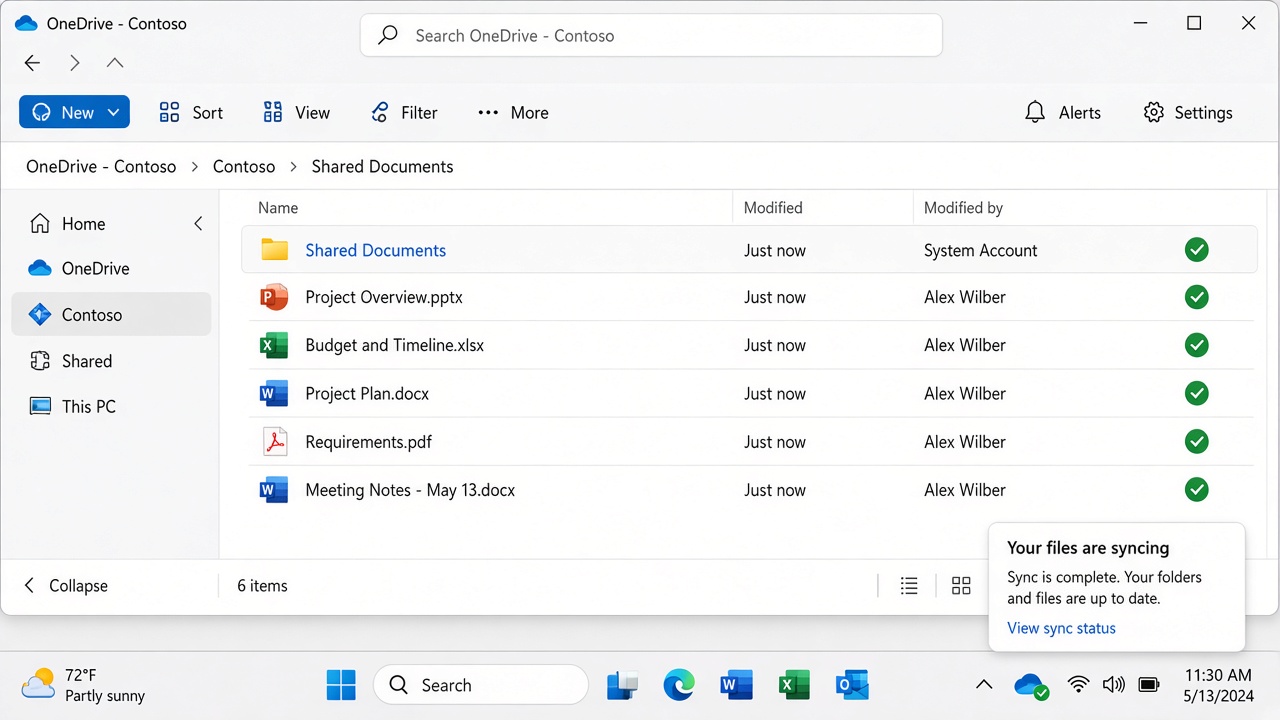
- Check the OneDrive cloud icon in the Windows notification area (or the Mac menu bar). It should show you signed in; a green check means files are up to date.
- Open File Explorer (Windows) or Finder (Mac). Under OneDrive – YourOrganization, look for the SharePoint site or library name (for Sync) or a shortcut folder inside your OneDrive (for Add shortcut).
- Green checkmarks on files mean they finished downloading or are available on demand. You can right-click a file and choose Always keep on this device if you need it offline.
Troubleshooting
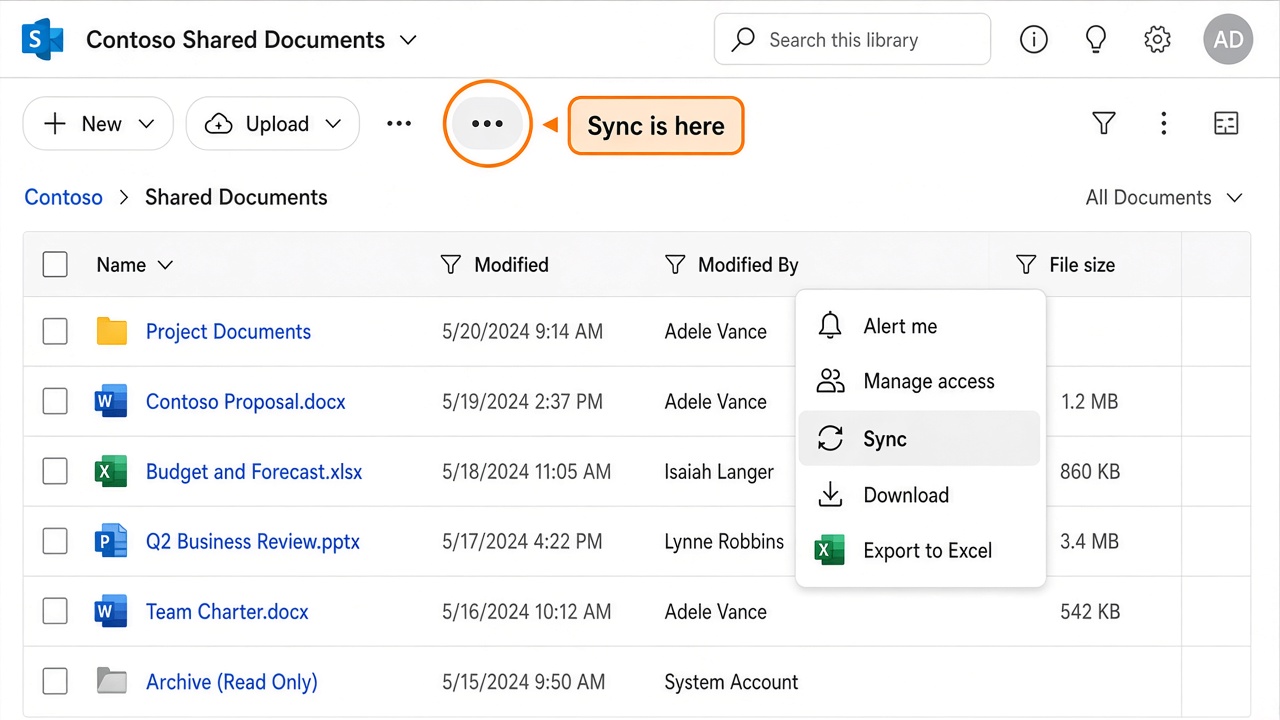
- Not seeing Sync. Widen the browser, open the ⋯ menu on the command bar, or try Edge. Sync requires the OneDrive desktop app and a work or school account with permission to that library. Viewing files only in the browser does not create a local sync.
- Browser vs desktop. “Add shortcut to OneDrive” works from the browser and shows in OneDrive on the web and on signed-in devices. Sync always needs the desktop OneDrive client running on that PC.
- Wrong or empty folder. Confirm the OneDrive icon is the work account (not a personal @outlook.com). Pause/resume sync from the tray menu, or sign out and back into OneDrive Settings → Account.
- Sync icon stuck or errors. Open the OneDrive tray → View sync problems. Free up disk space, and make sure the path is not blocked by antivirus quarantine. Restart OneDrive from the tray if needed.
- Still stuck. Call SOS TECH at (603) 556-4055 — we can confirm permissions and the OneDrive client on a remote session.